Workspace setup
Install chat on your website
Configure your business's widget, allow your website and send a first test enquiry.
For workspace administrators and website owners
On this page
Before you start
Your workspace needs the Website chat and Enquiries services enabled, and your account needs permission to edit settings. You also need access to add a script to your website. Each business has its own installation ID, allowed websites and conversations.
Configure and install the widget
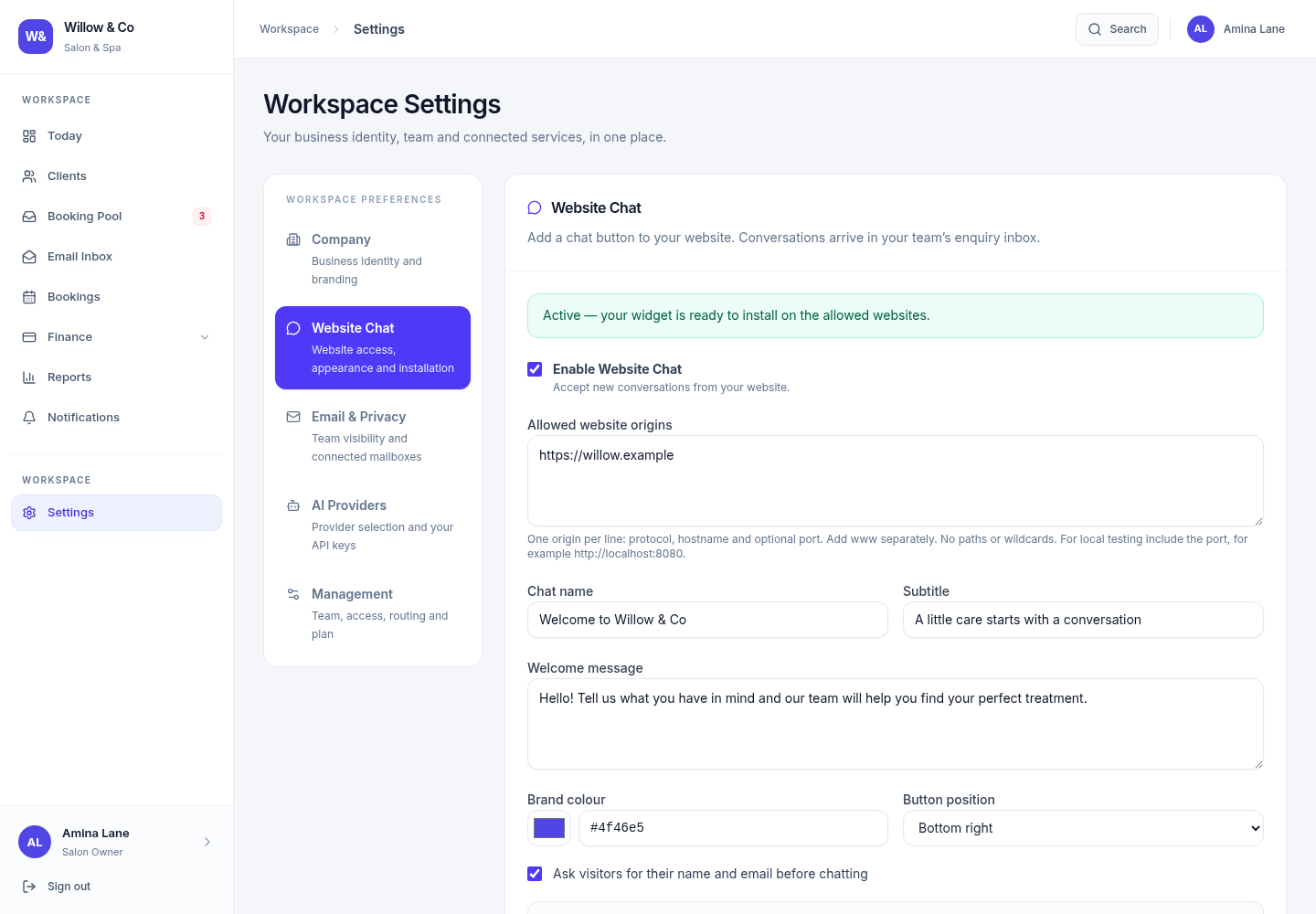
Open Settings → Website Chat
Choose your title, subtitle, greeting, accent colour and widget position. Decide whether to ask visitors for their name and email before chatting.
Add your allowed websites
Enter the exact origins that can use the widget, such as https://example.com and https://www.example.com. Add both if you use both. Origins include the protocol, hostname and any non-default port; do not add page paths or wildcards.
Enable and save
Activate the widget and save your chat settings. The installation snippet becomes available once the required services, website allowlist and activation are ready.
Copy the installation snippet
Use Copy snippet and add the generated script before your website's closing </body> tag. Keep the generated installation ID exactly as supplied.
Send a test enquiry
Open an allowed website, start a conversation and send a test message. In Gatherdesk, open the Web channel in the enquiry pool, claim the request and reply. Confirm the visitor receives your reply.
 View full size
Allowed websites are exact
| Configured website | Allows | Does not also allow |
|---|---|---|
| https://example.com | The HTTPS site on that hostname | http://example.com or https://www.example.com |
| https://www.example.com | The www hostname over HTTPS | Other subdomains |
| http://localhost:3001 | That local test site | http://127.0.0.1:3001 or other ports |
Add AI replies when you are ready
AI replies are optional. Enable the AI service, choose OpenAI or Claude in Settings → AI Providers and configure that provider's own key. Then add accurate business information in Website Chat and enable its AI-assisted replies option.
Human replies and enquiry collection work without automatic AI responses. Review the business information you provide, keep it free of secrets and make sure staff confirm prices, availability and important advice. A human claim pauses automatic replies.
If the widget does not appear
- Check service activation, the widget's enabled setting and the website allowlist.
- Compare the exact browser origin, including http/https, www and port, with the allowed entry.
- Use an actual web server for local testing. Opening an HTML file directly is not an allowed website origin.
- A live HTTPS website needs a publicly reachable HTTPS widget address. A localhost loader only works in a local development environment.
- If your website has a content security policy, its administrator must allow the configured widget host. Do not disable the site's security policy globally.
- Pausing the widget or removing a website blocks further visitor messages. Existing conversations remain in the workspace.