Skip to content
All guides
Download PDF
gatherdesk

The product handbook · September 2026

A clearer way
to run the day.

Your practical guide to the Gatherdesk workspace—from the first enquiry to organised work, team handovers and billing.

8 practical guides10 business typesgatherdesk.app

Screenshots show the actual application with illustrative demo data, not real customers. Available features depend on your business type, enabled services and permissions.

Chapter 01 · Start here

Your first day in Gatherdesk

Find your workspace, understand the dashboard and set up a practical first workflow.

For business owners and new team members

Start with your business workspace

Use the workspace sign-in address supplied by your business administrator. Your business name and logo identify the workspace. After signing in, navigation and available actions reflect your role and the services enabled for that business.

If you are exploring Gatherdesk, Book a demo or Request a trial collects your business and contact details for follow-up. Submitting a request does not create a workspace, start billing or reserve a meeting time.

Get your bearings

Open Today or Dashboard to see your daily overview. Use the search control in the top bar to find records you are allowed to access. The sidebar focuses on everyday work; workspace administration lives under Settings.

Your industry changes the language you see. A salon works with bookings and clients; a trades business works with jobs and customers. An unavailable service or a restricted permission may mean that a tile, menu item or action does not appear.
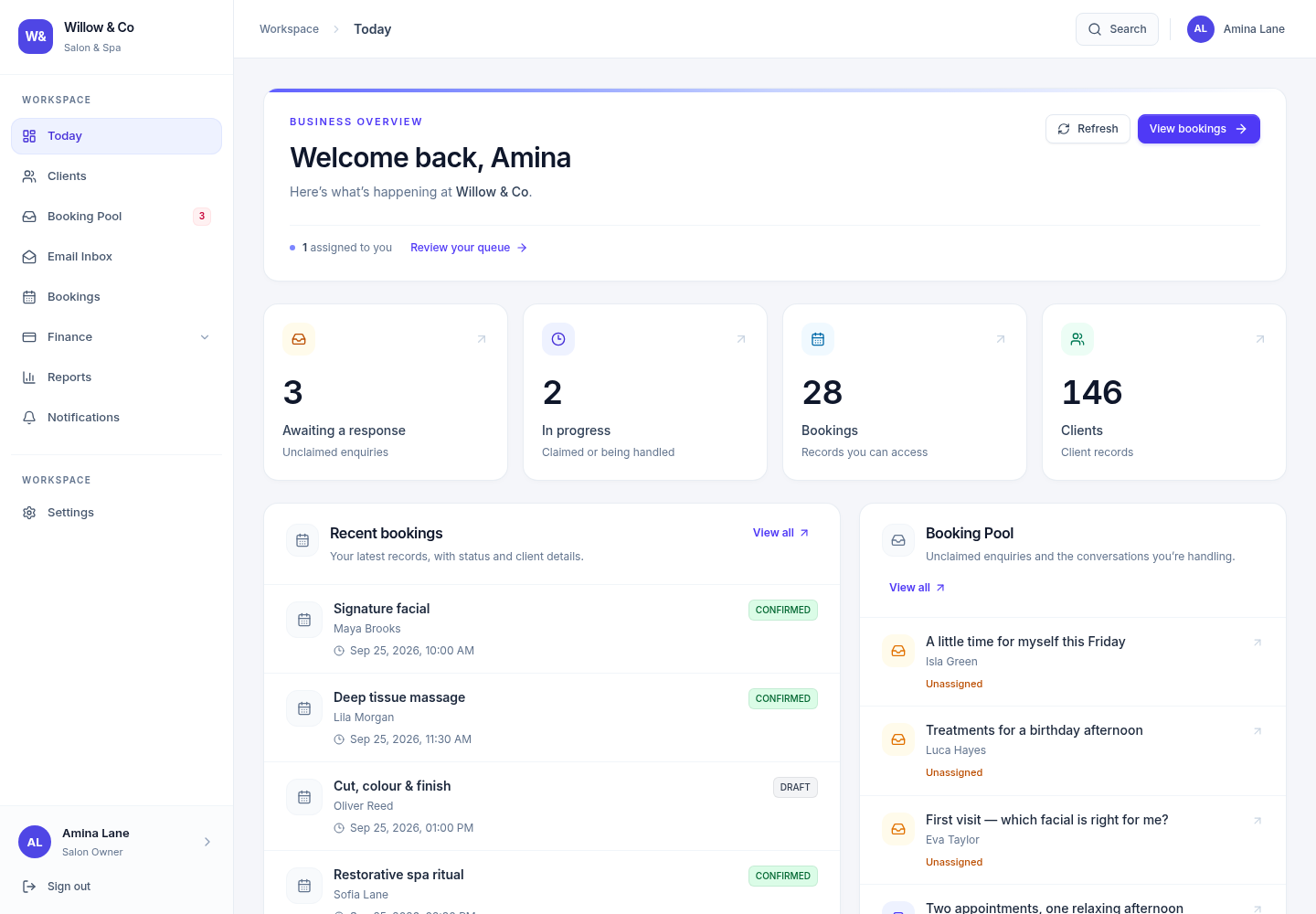
Gatherdesk dashboard for the fictional Willow & Co salon, showing its workspace navigation and daily work overview.View full size
The daily overview brings available work and enquiry information together. Actual product screen with illustrative demo data; services and permissions determine what you see.

Set up one complete workflow

  1. Confirm your business identity

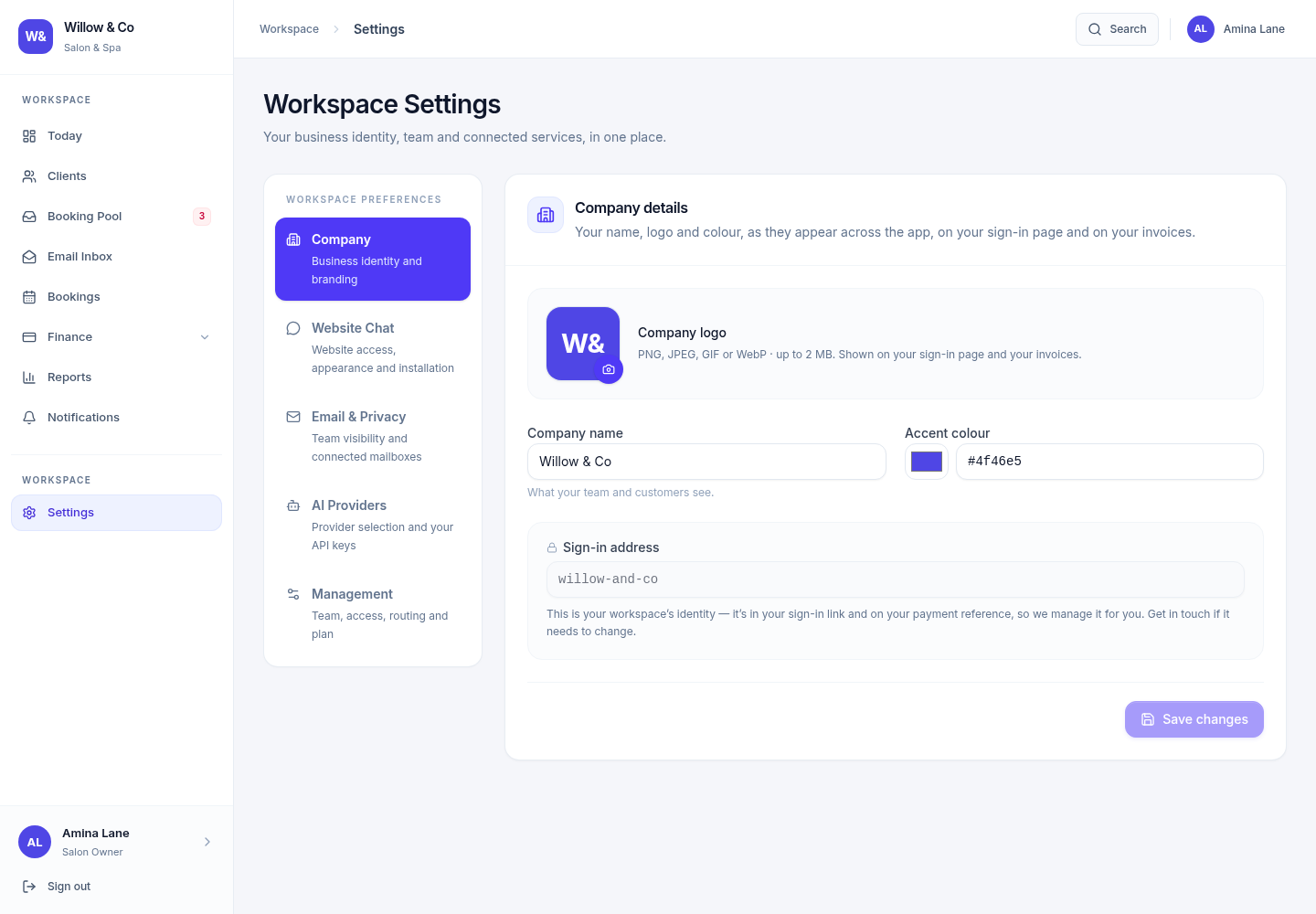
    An administrator can open Settings → Company to review the name, logo and accent colour. The business type chosen at creation is permanent.

  2. Review the team

    Open Settings → Management → Team members and Roles & permissions. Give each colleague an individual account with the access needed for their work.

  3. Choose an incoming channel

    Configure a mailbox or website chat if those services are enabled. Route the source to the colleagues who should handle its enquiries.

  4. Handle a first enquiry

    Open the enquiry pool, claim an available request and send a reply. Check the response before marking the request handled.

  5. Create the next piece of work

    When your Work service is enabled, create a booking, job, project or other industry-specific work record. Add the customer, schedule and service items before preparing a proforma where invoicing is available.

If an option is missing

  • Ask your administrator whether your role has permission for the action.
  • Check Billing & plan for the workspace's enabled services. A configured integration still needs its service enabled.
  • If a page shows a loading error, use Retry. An error does not mean your records have been deleted.
  • When switching businesses, use the correct workspace address and account rather than assuming access carries over.
Chapter 02 · Start here

Business types and enabled services

Understand what changes by industry and how services, plans and permissions work together.

For business owners and administrators

A workspace in your business's language

Gatherdesk uses an industry profile for terminology, work structure, role names and relevant services. The business type is selected when the workspace is created and cannot be changed in either the business or platform administration screens.

Business typeWork recordPeopleWork structure
Travel agencyItineraryClientsDays and items
Real estate agencyDealBuyersStages and fee lines
Medical / health clinicCare planPatientsConsultations and procedures
Dental practiceTreatment planPatientsAppointments and procedures
Salon & spaBookingClientsAppointments and services
Gym & fitness studioProgrammeMembersSessions and exercises
Events & weddingsEventClientsRun sheet days and line items
Trades & home servicesJobCustomersVisits and tasks
Online storeOrderCustomersShipments and line items
Other / general businessProjectClientsStages and line items

Three things decide what you can use

  1. Business relevance

    The industry profile limits which services can be offered. Travel inventory and travel documents belong to travel workspaces.

  2. Service activation

    The current plan limits which services can be activated. Free and Starter stay focused on customer conversations in every industry. Broader plans can expose relevant operational services; Website Chat also needs Enquiries.

  3. Your permissions

    Your role and source assignments determine what you can see and do inside those services. Administrator-only setup is separate from everyday staff actions.

Scheduling follows the work

Salon, clinic, dental, fitness, event and trades work supports date and time inputs. Travel uses departure and return dates and consecutive itinerary days. Deals, orders and general projects use calendar dates, with precise times available for staff assignments.

Use the labels and fields supplied by your workspace. When a specialised feature is missing, changing the title of a work record does not add that capability.

What the current workflows cover

The industry profiles support the shared CRM flow: enquiries, customer records, work, service items, assignments and billing where enabled. They are a starting point for operational work, with explicit service boundaries.

  • Clinic and dental profiles do not provide a complete clinical records or diagnostic system.
  • An online-store order is not a complete stock, shipping or fulfilment integration.
  • Property portals, recurring classes, room capacity and jurisdiction-specific tax rules require dedicated functionality beyond these shared records.

Chapter 03 · Daily work

Claim, reply and hand over enquiries

Keep one clear owner for each enquiry, including conversations from your website.

For agents, managers and business administrators

One shared place for incoming requests

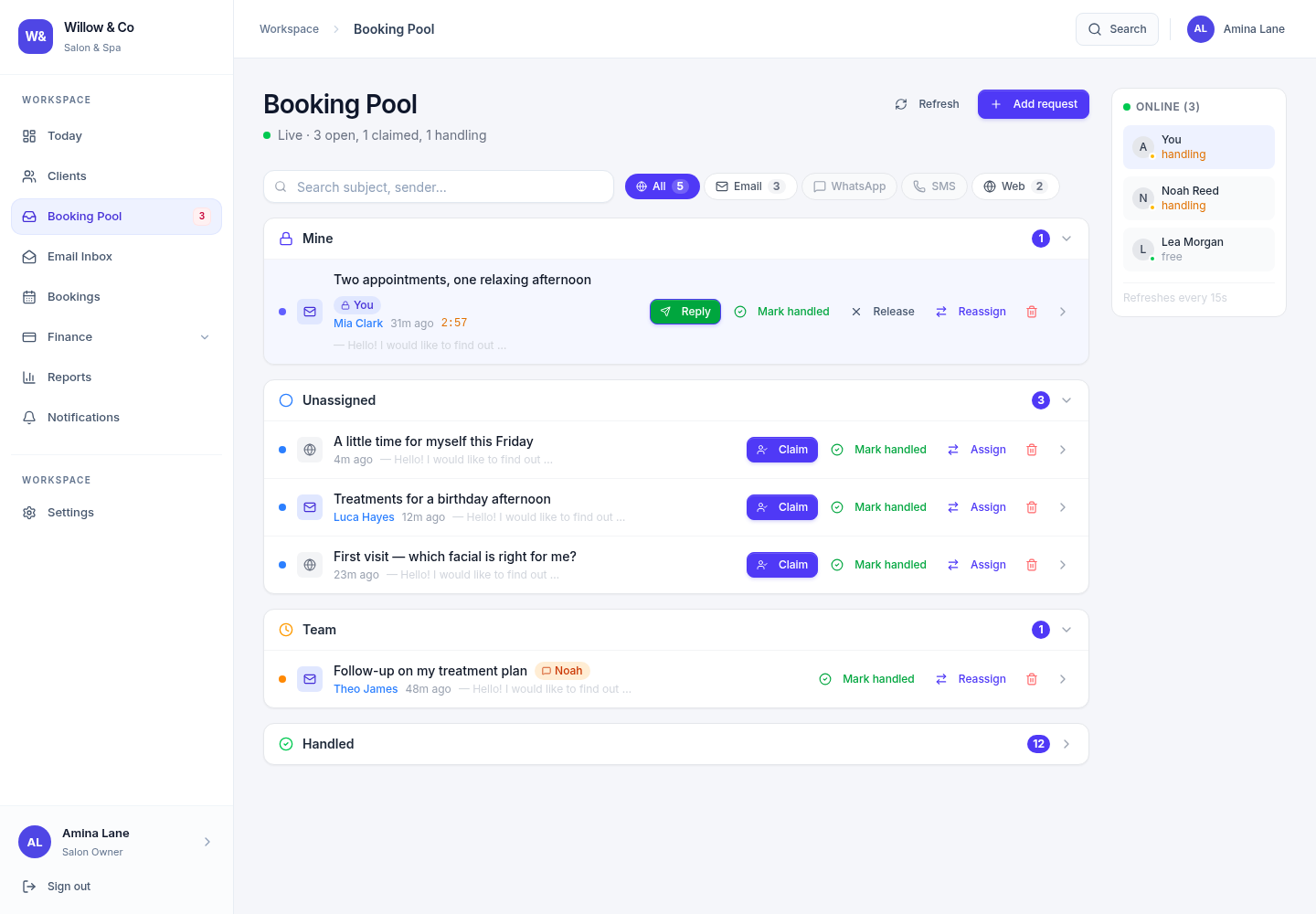
The enquiry pool groups requests by their ownership and handling state. Its displayed name follows your workspace's vocabulary. Use channel filters and search to focus on the requests you are allowed to handle. Website conversations join the same ownership workflow as other enquiries.

Gatherdesk enquiry pool for the fictional Willow & Co salon with requests grouped by ownership and channel filters.View full size
A shared enquiry pool makes ownership visible to the team. Actual product screen with illustrative demo data.

Understand the ownership states

StateMeaningWhat to do
OpenNo current ownerAn eligible team member can claim it.
ClaimedReserved for one team member for five minutes before the first successful replyReply before the claim expires, or release the enquiry.
HandlingThe first staff reply succeeded and the owner remains responsibleContinue the conversation, release it or mark it handled.
HandledThe enquiry is closed, retaining its historyA manager can reopen it when further work is needed.

Respond without duplicating work

  1. Claim an open request

    Claiming reserves the enquiry for you. If someone else claims it first, refresh and choose another request. Clicking Claim repeatedly does not extend the initial five-minute window.

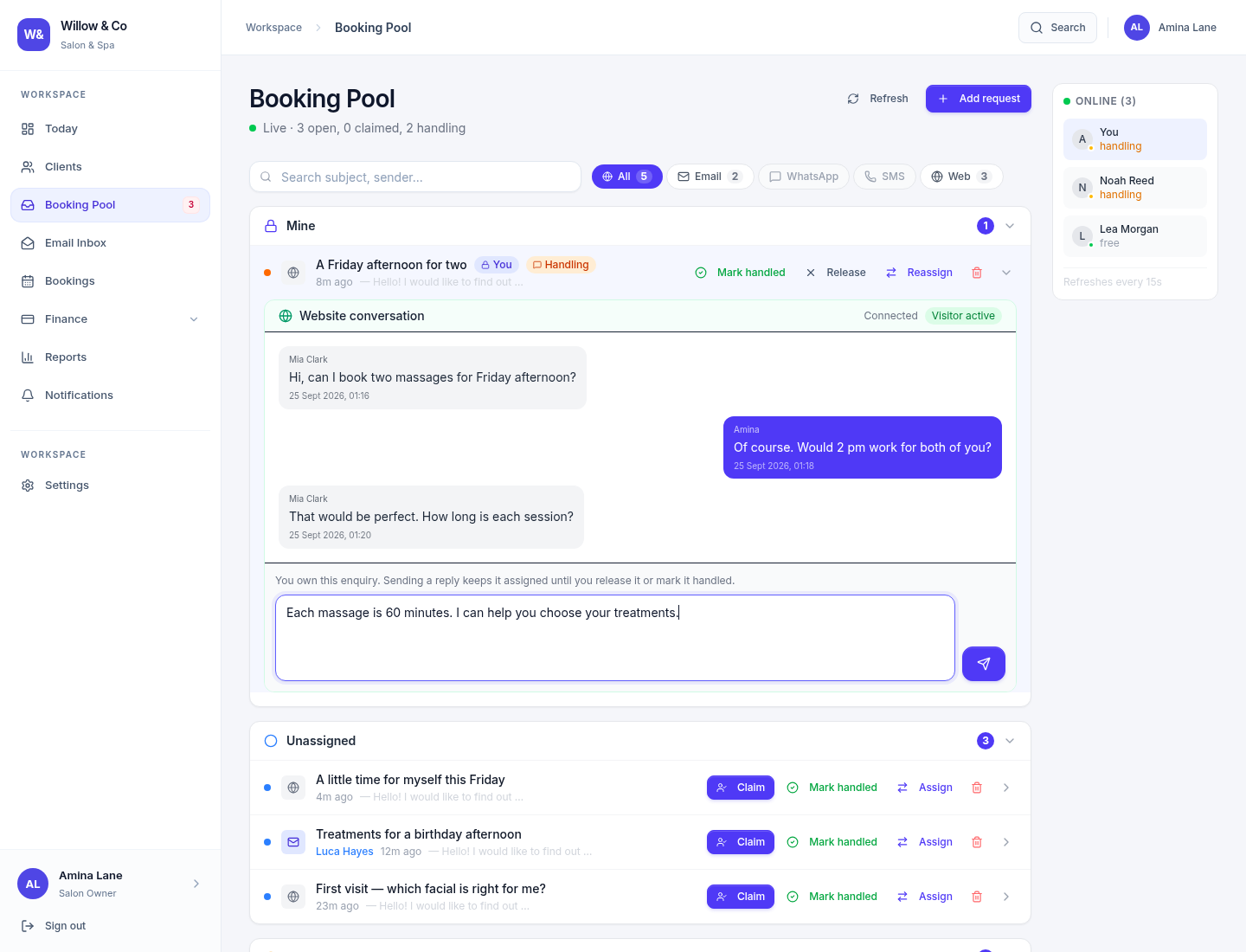
  2. Read the conversation

    Check the original message and previous replies before writing. A visible countdown means you have a temporary claim.

  3. Send and check the result

    A successful reply moves the enquiry into handling. If ownership changes or a claim expires, sending is rejected and your draft is retained. For an uncertain email delivery, check the mailbox before resending.

  4. Finish or hand over

    Mark the enquiry handled when the conversation is complete. Release it to make it available again, or ask an authorised manager to reassign it to an eligible colleague.

An expanded Gatherdesk website enquiry showing visitor and team messages, its current owner, a reply composer and ownership actions.View full size
Read the thread, confirm who owns the enquiry and reply from the same place. Actual product screen with illustrative demo data; only the current authorised owner can send a staff reply.

Assignments and manager actions

Managers with the necessary access can assign or take over visible enquiries. The assignee list contains eligible colleagues for that request. Routing, mailbox restrictions and current permissions still apply; seeing a name elsewhere does not make that account eligible.

For website chat, the agent who owns the enquiry also owns the staff conversation. Automatic replies pause while a human owns the request. A visitor leaving the chat does not remove the enquiry from its staff owner.

Why a channel may be greyed out

  • Web requires a paid plan with Website Chat, the Enquiries service, an enabled widget and at least one allowed website. Free shows Paid only until the plan changes.
  • Email requires the relevant service and a configured mailbox accessible to your account.
  • WhatsApp requires a paid plan, an active WhatsApp service and a connected business number. SMS remains unavailable. The Phone filter is hidden.
  • Source routing controls who may handle a source. It does not activate an integration.

Chapter 04 · Workspace setup

Install chat on your website

Configure your business's widget, allow your website and send a first test enquiry.

For workspace administrators and website owners

Before you start

Your workspace needs the Website chat and Enquiries services enabled, and your account needs permission to edit settings. You also need access to add a script to your website. Each business has its own installation ID, allowed websites and conversations.

Configure and install the widget

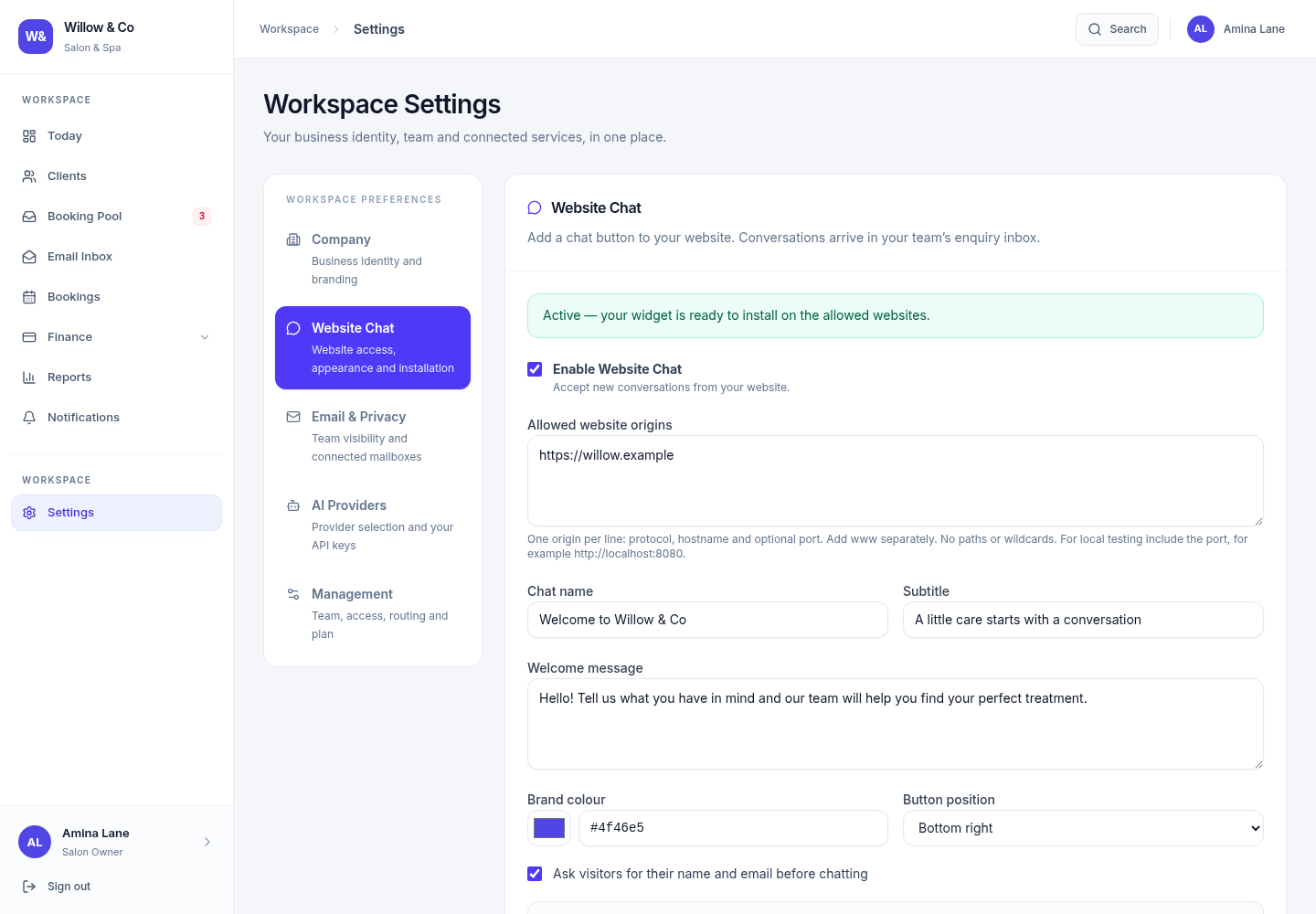
  1. Open Settings → Website Chat

    Choose your title, subtitle, greeting, accent colour and widget position. Decide whether to ask visitors for their name and email before chatting.

  2. Add your allowed websites

    Enter the exact origins that can use the widget, such as https://example.com and https://www.example.com. Add both if you use both. Origins include the protocol, hostname and any non-default port; do not add page paths or wildcards.

  3. Enable and save

    Activate the widget and save your chat settings. The installation snippet becomes available once the required services, website allowlist and activation are ready.

  4. Copy the installation snippet

    Use Copy snippet and add the generated script before your website's closing </body> tag. Keep the generated installation ID exactly as supplied.

  5. Send a test enquiry

    Open an allowed website, start a conversation and send a test message. In Gatherdesk, open the Web channel in the enquiry pool, claim the request and reply. Confirm the visitor receives your reply.

Website Chat settings for the fictional Willow & Co salon, showing widget configuration and allowed website controls.View full size
Configure the widget for the business and its allowed websites. Actual product screen with illustrative demo data; use the installation snippet generated in your own workspace.

Allowed websites are exact

Configured websiteAllowsDoes not also allow
https://example.comThe HTTPS site on that hostnamehttp://example.com or https://www.example.com
https://www.example.comThe www hostname over HTTPSOther subdomains
http://localhost:3001That local test sitehttp://127.0.0.1:3001 or other ports

Add AI replies when you are ready

AI replies are optional. Enable the AI service, choose OpenAI or Claude in Settings → AI Providers and configure that provider's own key. Then add accurate business information in Website Chat and enable its AI-assisted replies option.

Human replies and enquiry collection work without automatic AI responses. Review the business information you provide, keep it free of secrets and make sure staff confirm prices, availability and important advice. A human claim pauses automatic replies.

If the widget does not appear

  • Check service activation, the widget's enabled setting and the website allowlist.
  • Compare the exact browser origin, including http/https, www and port, with the allowed entry.
  • Use an actual web server for local testing. Opening an HTML file directly is not an allowed website origin.
  • A live HTTPS website needs a publicly reachable HTTPS widget address. A localhost loader only works in a local development environment.
  • If your website has a content security policy, its administrator must allow the configured widget host. Do not disable the site's security policy globally.
  • Pausing the widget or removing a website blocks further visitor messages. Existing conversations remain in the workspace.

Chapter 05 · Workspace setup

Team access and source routing

Give colleagues the right permissions and connect incoming sources to the right team.

For business administrators and managers

Find your management tools

Open Settings → Management. The Team & access group links to Team members and Roles & permissions. Communication & routing contains Source routing and Connected mailboxes. Only the tools available to your account are shown.

Gatherdesk workspace settings for the fictional Willow & Co salon, with Company, Website Chat, Email & Privacy, AI Providers and Management tabs.View full size
Workspace settings separate branding, connected channels, AI configuration and management tools. Actual product screen with illustrative demo data.

Use a role for each responsibility

Role names can reflect your industry, but permissions determine which actions are allowed. A business administrator manages its own workspace; a platform operator manages platform-level businesses and subscriptions. These are separate kinds of access.

  1. Create individual accounts

    An authorised administrator can create a user with the appropriate role and account details. Follow the account's verification and sign-in instructions; avoid shared staff logins.

  2. Review the actual permissions

    Use Roles & permissions to check access to customer information, work, finance, settings and administrative actions. A job title alone is not a permission grant.

  3. Set the source assignments

    In Source routing, connect eligible team members to the sources they should handle. Mailbox restrictions can further limit which email enquiries a person sees.

  4. Check the staff experience

    Ask the colleague to sign in with their own account. Confirm they can see the intended queue and perform their daily actions, without unrelated management tools.

Keep sensitive configuration with the right people

  • Integration secrets need additional settings permissions. Ordinary agents do not need access to provider keys to handle assigned conversations.
  • Only authorised managers can reassign an enquiry owned by someone else.
  • The plan, enabled services, role permissions and source assignments all contribute to available actions.
  • Deactivate accounts when colleagues leave and review remaining source assignments and role membership.

Resolve an access problem

Check that the colleague is in the correct business workspace and their account is active. Then review the enabled service, role permissions and source assignment for the specific task. Refresh after a change so the interface can load its current configuration.

If a button is visible but the server rejects an action, do not work around it by sharing another user's credentials. Ask an administrator to review the access configuration.

Chapter 06 · Daily work

From customer work to an invoice

Create industry-specific work, add priced service items and keep customer billing consistent.

For team members with work or finance access

Create the right work record

  1. Select the customer

    Open your work area—Bookings, Jobs, Projects, Itineraries or your industry's equivalent—and create a record with the correct customer.

  2. Set dates and currency

    Use the dates or appointment times supplied by your business profile. Choose the intended currency before adding priced items or billing documents.

  3. Add the service detail

    Build the relevant appointments, stages, visits or days and add service items with descriptions, quantities and unit prices. The application calculates line totals.

  4. Assign staff where available

    When staff scheduling is enabled, choose registered staff and the correct time or date range. Overlapping reservations for the same registered resource are checked; free-text names cannot provide that resource check.

Prepare a proforma

With Invoicing enabled and the required permissions, open Finance → Invoices and create a proforma. Select a work record when the document relates to existing work, or create a standalone proforma when appropriate.

Linking work carries its customer and currency into the document. Review the total, due date and notes before saving. A proforma is a preliminary document; use the document's available issue/finalise action when it is ready to become an invoice.

Review before issuing

  • Check the customer, currency, service descriptions, quantity, price and payment terms.
  • Issued documents use a snapshot so later work edits do not silently rewrite an existing invoice.
  • Once priced items or billing documents exist, changing the work's currency is blocked to avoid relabelling amounts.
  • Record customer payments only when they have actually been received. Overpayments are rejected because there is no customer credit-balance ledger.
  • Keep different currencies separate. Gatherdesk does not silently convert balances into a single currency total.

Customer finance and your Gatherdesk subscription

Finance contains the money your business bills or receives from its customers, plus supplier workflows when enabled. Settings → Management → Billing & plan contains your business's subscription to Gatherdesk. A payment in one area does not settle the other.

The available finance tools do not by themselves establish jurisdiction-specific tax or accounting compliance. Confirm the required invoice content and accounting process for your own business before issuing documents.

Chapter 07 · Workspace setup

Your plan, services and payments

Review the workspace subscription, understand Free access and report a payment when required.

For business owners and authorised billing administrators

Read the current plan

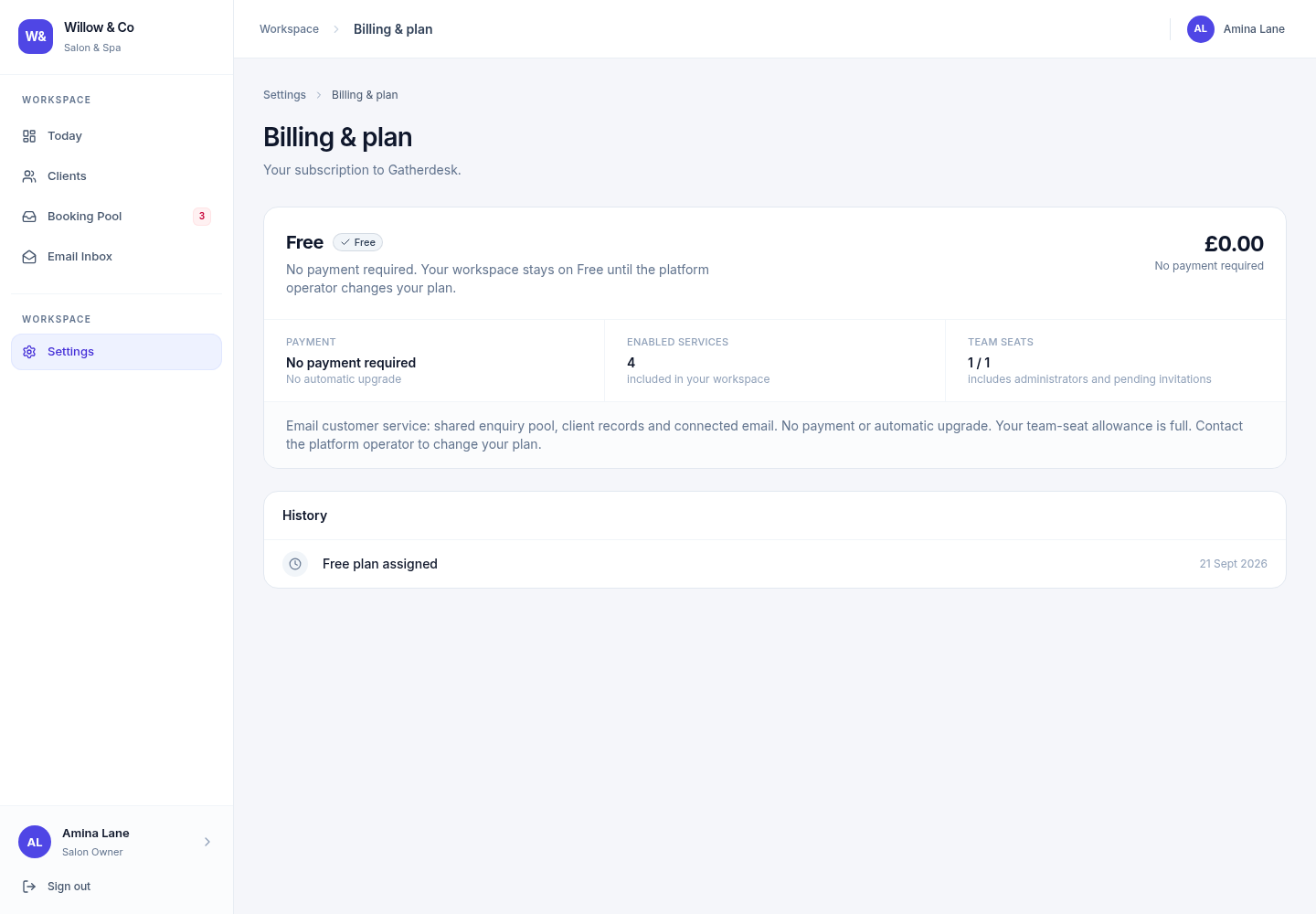
Open Settings → Management → Billing & plan. The page shows the current plan, status, relevant dates, enabled services and billing history. This is your workspace's subscription to Gatherdesk, separate from your customer invoices.

A business starts on Free unless the platform operator explicitly assigns another plan. Free does not require a payment and does not automatically upgrade. A demo or trial request on the public website is a request for follow-up, not an automatic subscription change.

Gatherdesk Billing & plan screen illustrating a workspace on the Free plan, with no payment required and its included services.View full size
An illustrative Free-plan workspace. This separate example shows the Free baseline; other screenshots demonstrate additional enabled services. Actual product screen with demo data.

Understand what is included

Free includes the shared enquiry pool, customer records and connected email. Paid chat channels stay visible but locked. Starter adds Website Chat and includes three total team seats: an administrator plus two colleagues in any permitted staff roles. WhatsApp is included as a paid-plan service and becomes usable after your workspace connects and activates its own business number. You can use a customer-owned Meta app or guided Meta sign-in when the platform has enabled it. Free and Starter do not include operational work or customer finance services, whatever the industry.

Use the current workspace screen for applicable pricing, interval, dates and services. Active staff and pending invitations count towards the enforced team-seat allowance, including administrators and managers. Customer records do not use staff seats. Existing accounts are retained after a downgrade, but additional staff or reactivations are blocked until space is available. Contact the platform operator to change the plan.

Report a payment when it is due

  1. Check the payment instructions

    Use only the configured payment method and destination displayed in the billing page. If the account details are not configured, contact the platform operator before sending money.

  2. Complete the payment outside Gatherdesk

    For an available bank-transfer method, use the displayed amount and payment reference. The application does not send a bank transfer for you.

  3. Report the transfer

    When your role and subscription permit it, submit the payment details through the page. A report remains pending until the platform operator verifies it.

  4. Review the result

    Check the status and billing history after review. Reporting a payment is not proof of settlement and does not independently renew the subscription.

When a plan ends

Cancelled or expired subscriptions fall back to the Free customer-service workspace. Paid channels and operational tools are unavailable while their data is retained. Overdue accounts display their payment and grace-period state. Check the current billing screen for the dates and actions that apply to your workspace.

There is no automatic card checkout in this flow. Do not assume that a saved payment report, a trial request or a service configuration activates paid access.

Chapter 08 · Workspace setup

Branding, channels and AI settings

Organise your workspace identity, communication channels and optional AI provider.

For workspace administrators

Find the right settings section

Each section has its own save action. Moving between tabs preserves staged changes in the current page; it does not save them. Save the section before leaving or refreshing the page.

SectionUse it for
CompanyName, logo and accent colour
Website ChatWidget appearance, activation, allowed websites and installation
WhatsAppConnect, pause and disconnect your workspace’s business number
Email & PrivacyEmail visibility preferences and links to connected mailboxes
AI ProvidersProvider selection, API key replacement and key removal
ManagementTeam, roles, source routing, mailboxes, billing and deleted items

Make the workspace your own

In Company, update the name, logo and accent colour your team and customers see. Review the upload requirements shown beside the logo field. Your business type and workspace identity are managed separately from visual branding.

The same business branding is used across relevant sign-in and document surfaces. Changes to a logo or display name do not change who may access the workspace.

Connect mailboxes and route the work

Use Settings → Management → Connected mailboxes to manage the accounts used by your business. Configure the mailbox with the credentials and connection details supplied by your email administrator. Use Source routing to assign eligible team members.

Review Email & Privacy to control the supported visibility options. A mailbox connection, source assignment and email service activation are separate setup steps. Verify sending and receiving with a test conversation before relying on the channel for customer enquiries.

Connect WhatsApp Business

Open Settings → WhatsApp. With Your own Meta app, use a verified Cloud API number registered in your business portfolio, your Meta app ID and secret, WhatsApp Business account ID, phone number ID and a production system-user token. Gatherdesk verifies these credentials before saving them. Copy the generated callback URL and verification token into your Meta webhook settings, verify the callback, subscribe to messages, then refresh and activate WhatsApp.

Guided Meta sign-in is a separate option when enabled by Gatherdesk. It opens a Gatherdesk connection window and then Meta’s sign-in flow. Both options keep your workspace’s number, conversations and team assignments separate. Changing the connection method of an already bound account requires a supported migration; disconnecting does not erase its history.

Give team members WhatsApp access through Source routing. Claim the enquiry in the Pool or WhatsApp Inbox before replying. Freeform replies use the customer’s 24-hour service window; outside it, select a supported approved template and confirm the customer’s permission. Meta’s messaging charges and payment method are separate from your Gatherdesk plan. WhatsApp Business app coexistence is not supported in this release.

Configure an AI provider

  1. Choose the provider

    Open AI Providers, select OpenAI or Claude (Anthropic), and save the selection. Your account needs permission to manage these settings and secrets.

  2. Add its API key

    Use the provider's key-console link in the settings page to create a key for the business, then save it in the matching provider section. Saving one provider's key does not delete the other.

  3. Check service access

    A saved key means configured, not activated or verified. The AI service must also be enabled, and the provider account must have valid access and available quota.

  4. Enable the specific workflow

    AI-assisted email drafts and work notes use the selected provider. Automatic website replies also need the Website Chat AI toggle and accurate business context.

Keep a person in the loop

AI can help draft responses, but it may produce incorrect information. Check important advice, prices and availability before sharing. Business context and relevant conversation content are sent to the selected provider when that feature runs, so include only information appropriate for that purpose.

Selecting a provider without its key does not silently switch to another provider. If provider access, quota or application usage limits prevent a reply, human handling remains available. Removing a saved key disables the corresponding provider's readiness.

Ready for your first day

Your workspace checklist

  • Confirm your workspace address, business type and branding.
  • Review the current plan and relevant enabled services.
  • Give each colleague an individual account and appropriate permissions.
  • Configure a mailbox or website widget and route its enquiries.
  • Send a test enquiry, claim it and verify the visitor or customer receives a reply.
  • Create a work record with the right customer, currency and schedule.
  • Review document details before issuing an invoice.
  • Configure an AI provider only if needed; review the information it receives.

Gatherdesk product handbook · September 2026
© 2026 Gatherdesk. All rights reserved.