Start here
Your first day in Gatherdesk
Find your workspace, understand the dashboard and set up a practical first workflow.
For business owners and new team members
On this page
Start with your business workspace
Use the workspace sign-in address supplied by your business administrator. Your business name and logo identify the workspace. After signing in, navigation and available actions reflect your role and the services enabled for that business.
If you are exploring Gatherdesk, Book a demo or Request a trial collects your business and contact details for follow-up. Submitting a request does not create a workspace, start billing or reserve a meeting time.
Get your bearings
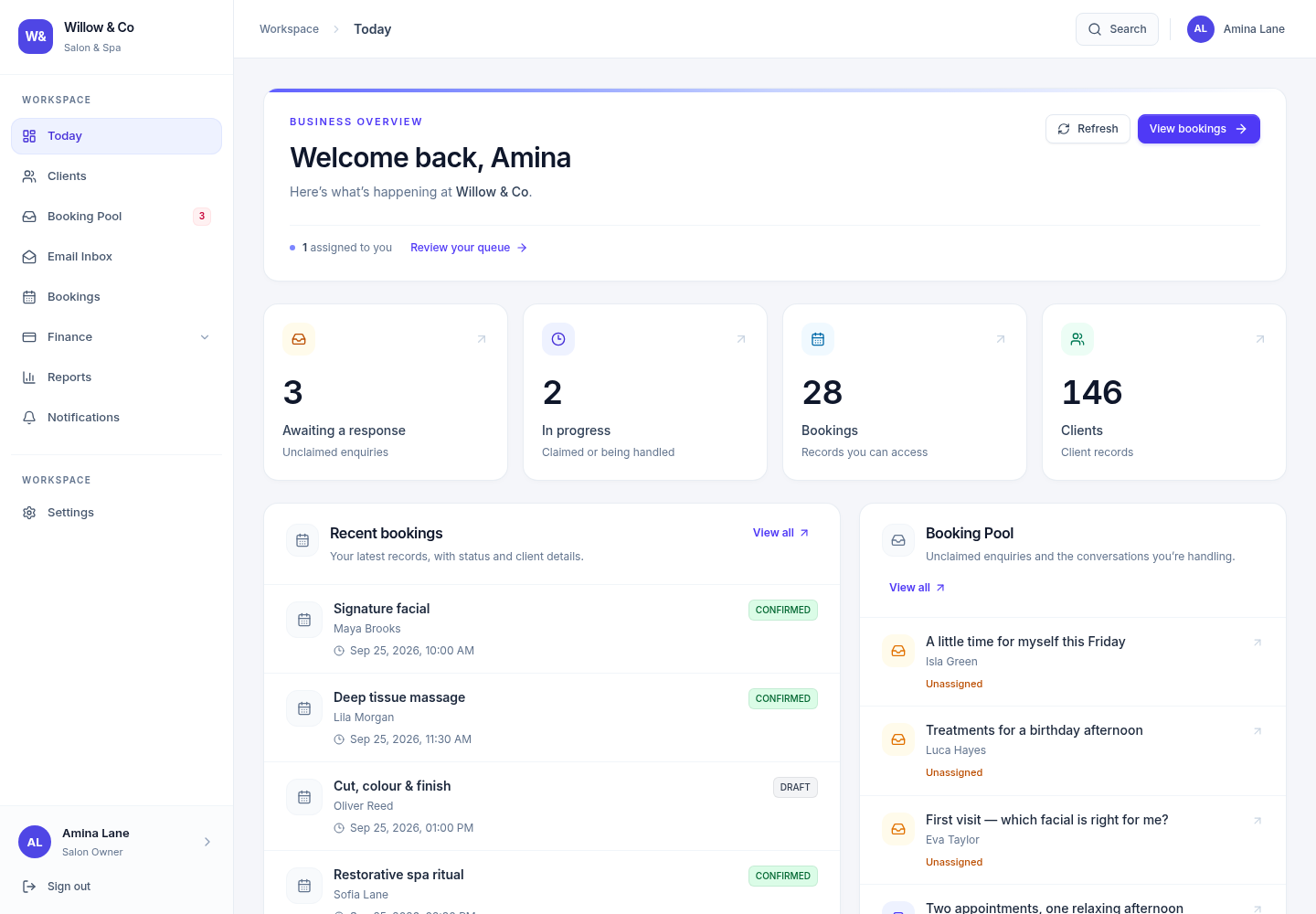
Open Today or Dashboard to see your daily overview. Use the search control in the top bar to find records you are allowed to access. The sidebar focuses on everyday work; workspace administration lives under Settings.
Your industry changes the language you see. A salon works with bookings and clients; a trades business works with jobs and customers. An unavailable service or a restricted permission may mean that a tile, menu item or action does not appear.
 View full size
Set up one complete workflow
Confirm your business identity
An administrator can open Settings → Company to review the name, logo and accent colour. The business type chosen at creation is permanent.
Review the team
Open Settings → Management → Team members and Roles & permissions. Give each colleague an individual account with the access needed for their work.
Choose an incoming channel
Configure a mailbox or website chat if those services are enabled. Route the source to the colleagues who should handle its enquiries.
Handle a first enquiry
Open the enquiry pool, claim an available request and send a reply. Check the response before marking the request handled.
Create the next piece of work
When your Work service is enabled, create a booking, job, project or other industry-specific work record. Add the customer, schedule and service items before preparing a proforma where invoicing is available.
If an option is missing
- Ask your administrator whether your role has permission for the action.
- Check Billing & plan for the workspace's enabled services. A configured integration still needs its service enabled.
- If a page shows a loading error, use Retry. An error does not mean your records have been deleted.
- When switching businesses, use the correct workspace address and account rather than assuming access carries over.