Workspace setup
Team access and source routing
Give colleagues the right permissions and connect incoming sources to the right team.
For business administrators and managers
On this page
Find your management tools
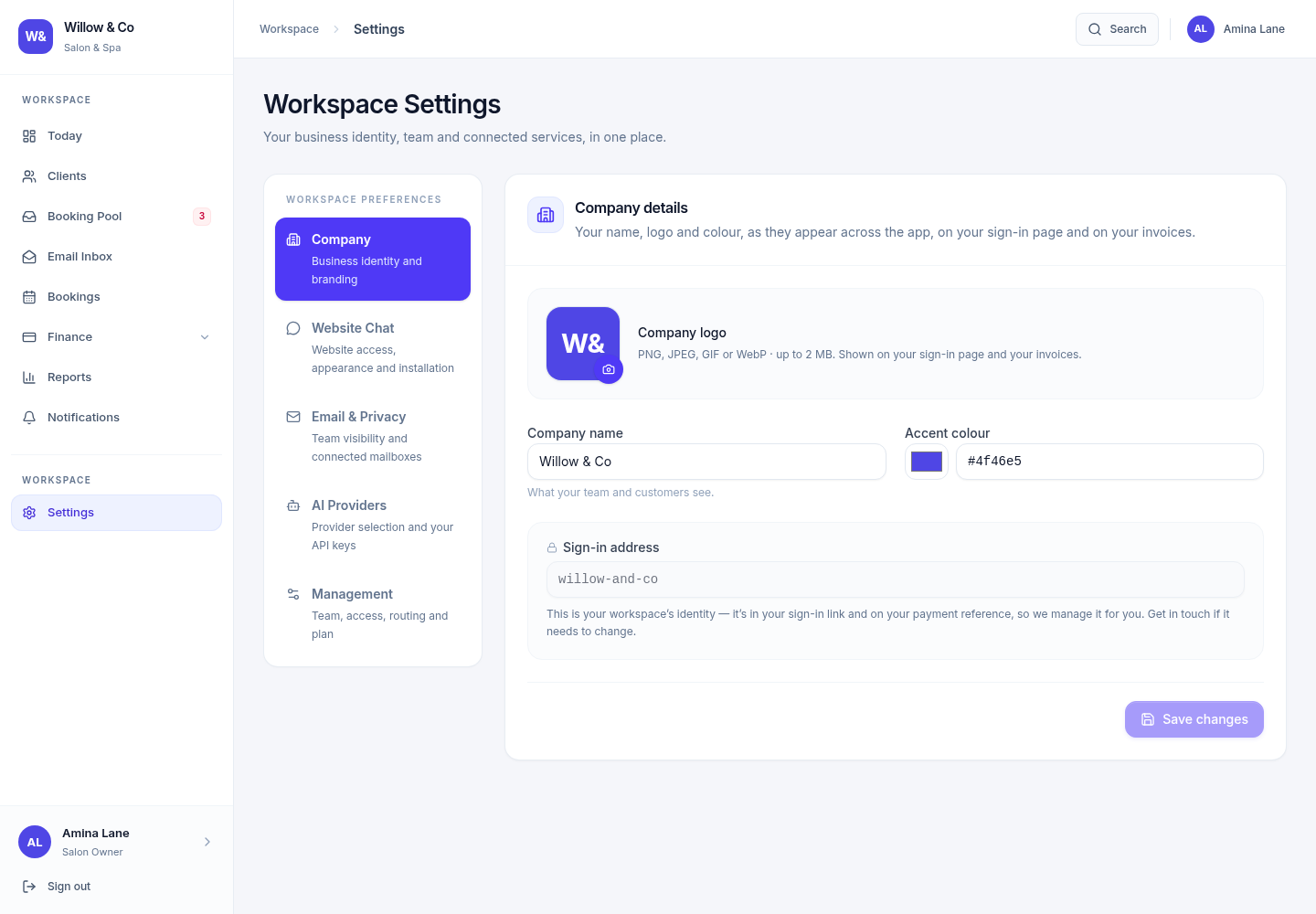
Open Settings → Management. The Team & access group links to Team members and Roles & permissions. Communication & routing contains Source routing and Connected mailboxes. Only the tools available to your account are shown.
 View full size
Use a role for each responsibility
Role names can reflect your industry, but permissions determine which actions are allowed. A business administrator manages its own workspace; a platform operator manages platform-level businesses and subscriptions. These are separate kinds of access.
Create individual accounts
An authorised administrator can create a user with the appropriate role and account details. Follow the account's verification and sign-in instructions; avoid shared staff logins.
Review the actual permissions
Use Roles & permissions to check access to customer information, work, finance, settings and administrative actions. A job title alone is not a permission grant.
Set the source assignments
In Source routing, connect eligible team members to the sources they should handle. Mailbox restrictions can further limit which email enquiries a person sees.
Check the staff experience
Ask the colleague to sign in with their own account. Confirm they can see the intended queue and perform their daily actions, without unrelated management tools.
Keep sensitive configuration with the right people
- Integration secrets need additional settings permissions. Ordinary agents do not need access to provider keys to handle assigned conversations.
- Only authorised managers can reassign an enquiry owned by someone else.
- The plan, enabled services, role permissions and source assignments all contribute to available actions.
- Deactivate accounts when colleagues leave and review remaining source assignments and role membership.
Resolve an access problem
Check that the colleague is in the correct business workspace and their account is active. Then review the enabled service, role permissions and source assignment for the specific task. Refresh after a change so the interface can load its current configuration.
If a button is visible but the server rejects an action, do not work around it by sharing another user's credentials. Ask an administrator to review the access configuration.